

The quick guide to verify your domain with Facebook
Having a verified domain is a requirement of Facebook to advertise online and ensure proper performance tracking in 2021. The reason for this verification lies in the new IOS 14 update introduced by Apple concerning the processing of personal data. This change will have a significant impact on the performance of ads displayed on mobile devices with IOS operating system. To address this situation, Facebook will now rely on server-side techniques rather than client-side ones (such as the Pixel used for several years). Server-side techniques therefore require domain verification with Facebook. Once your domain is successfully verified, you can choose 8 conversion events for optimization and tracking purposes. This event system is also known as “Aggregated Event Measurement”. Thus, you can start implementing the conversion API. This guide will only explain the domain verification process.
Note: The Facebook Pixel will still be used in conjunction with Aggregated Event Measurement and the Conversion API.
Before you start
- Vous aurez besoin d’avoir accès soit: l’arrière-plan de votre site web (back end), au moins accès à l’édition des méta-tags, votre registraire de domaine, ou d’accès administrateur au répertoire racine (root folder) de votre site web.
- Domain verification must be done at the top-level plus one (eTLD+1). For example, for www.books.jasber.com, books.jasber.com, and jasber.com, the eTLD+1 of the domain is jasber.com
- Keep in mind that you will have a maximum of 8 conversion events in aggregated event measurement. Plan your tracking efforts accordingly.
Ad an account to your Business Manager
- Connect to your Facebook Business Manager
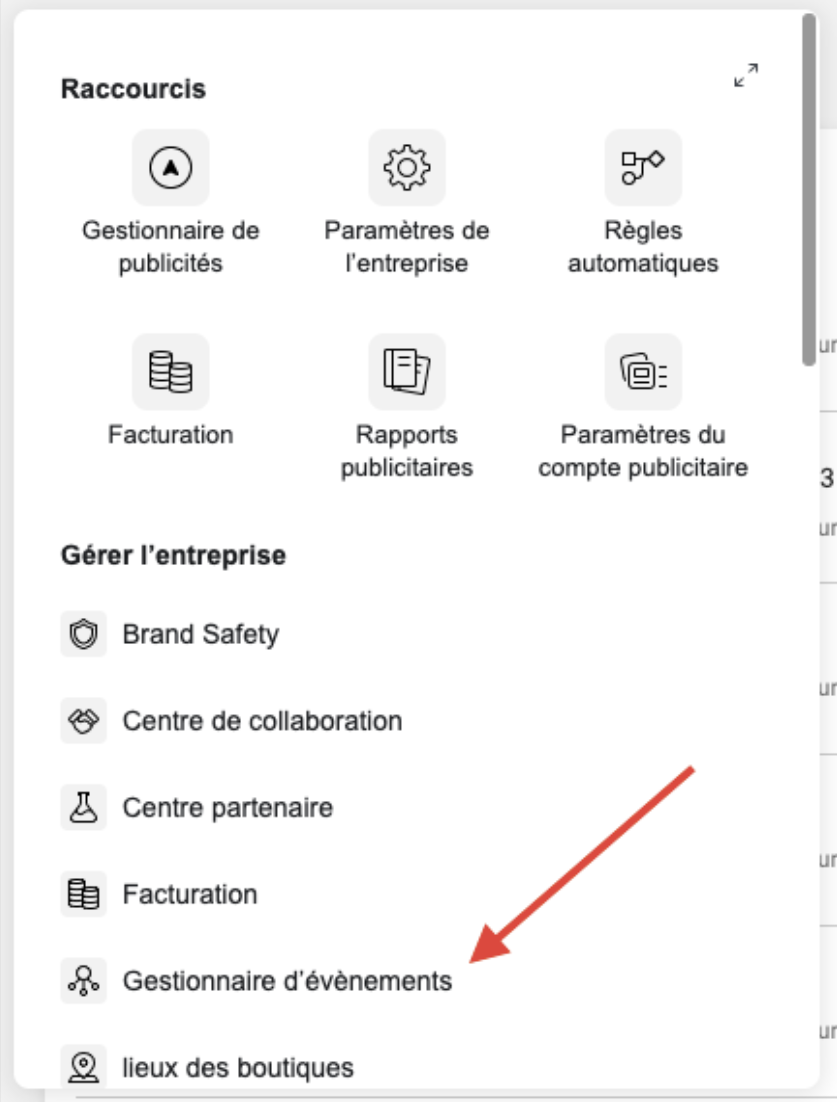
- Go into “Event manager”
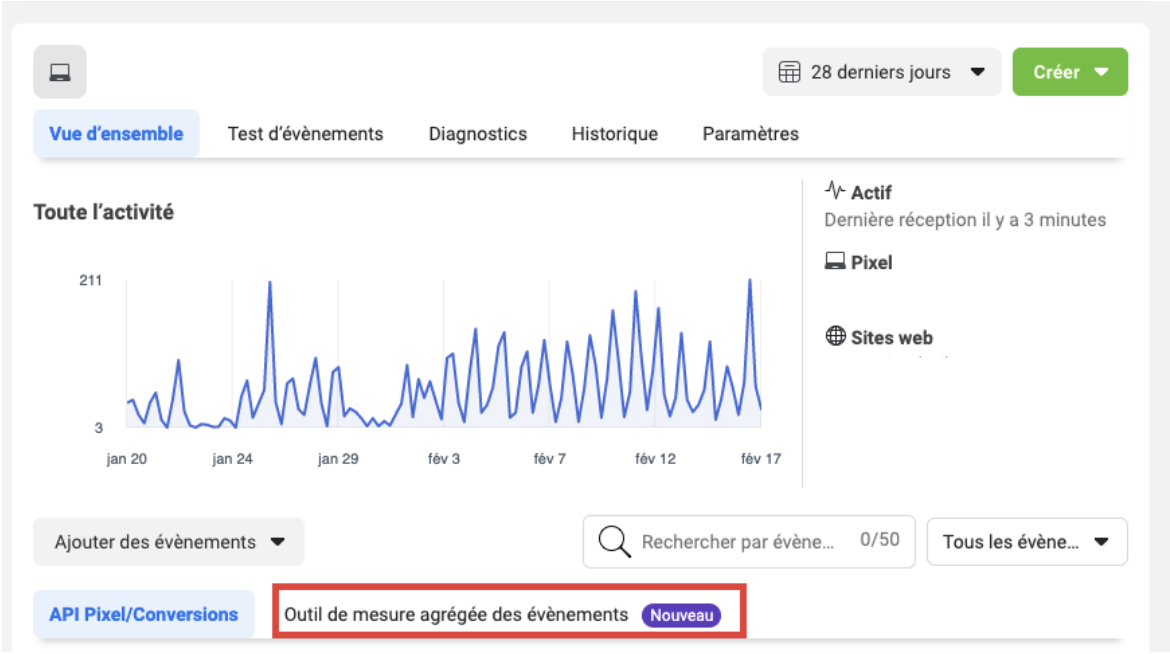
- Find the Pixel for the website you want to verify the domain for, and click on its name.
- Click on «Outil de mesure agrégée des évènements web»
- Then, click on «Configurez les évènements web»
- Click on «Gérer les domaines» in to top right corner
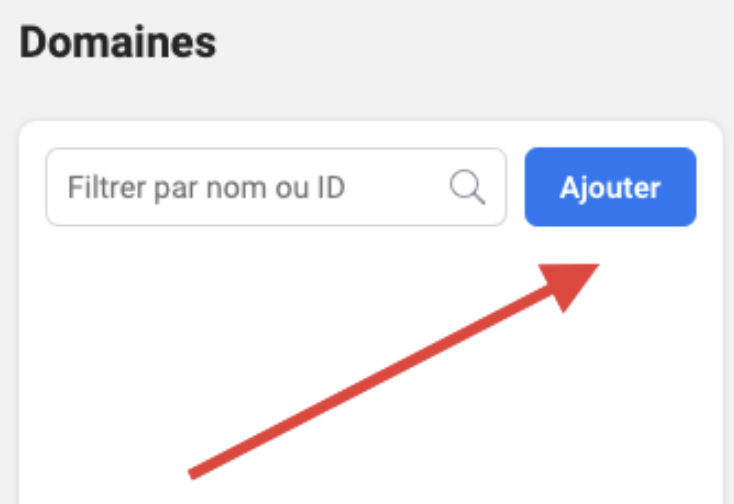
- Click on “add” to start the process
- Once you’ve added the domain, you should be able to see it in the list just below the “Add” button with a note “Verification in progress”.
- Now, click on the domain you’ve just added
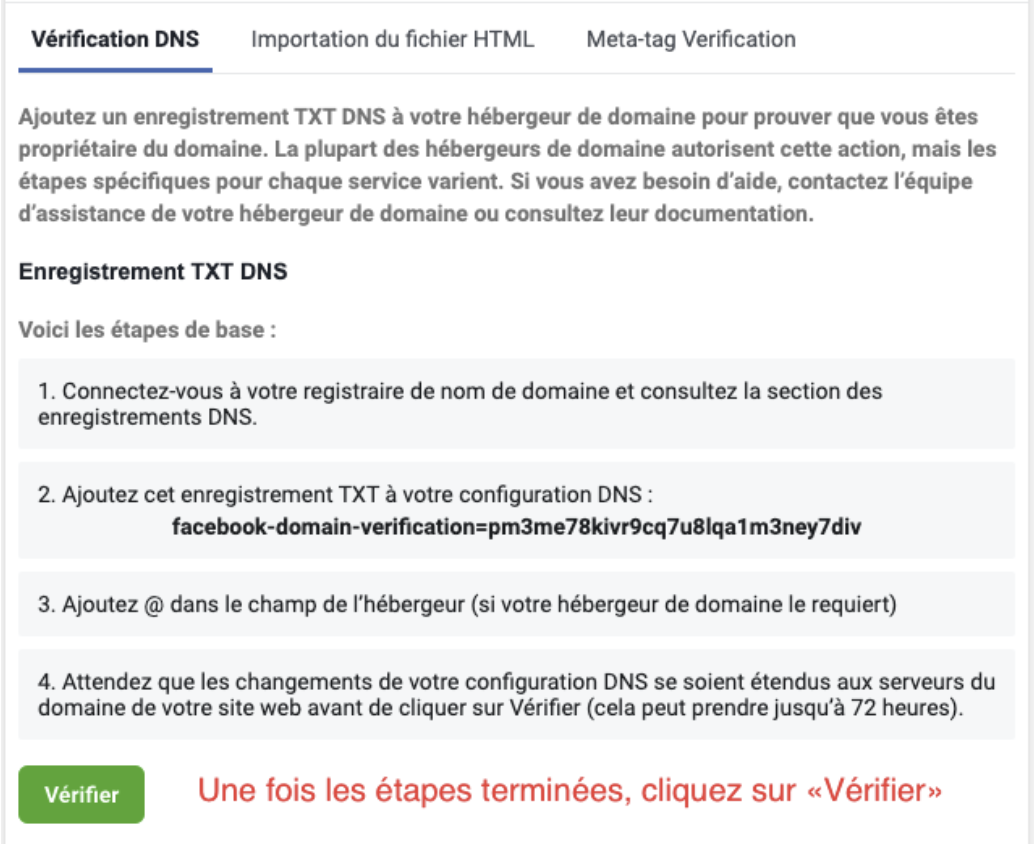
- Three options will be on your screen listing the steps to verify your domain. Once these steps are completed, click on the green “Verify” button.
Validation option 1: Via DNS
- This option requires you to have access to your domain registrar. For example, GoDaddy, Domain.com, etc.
- You must have access to your DNS configuration within your domain registrar for this option.
- The changes may take up to 72 hours to take effect everywhere on your website through your server.
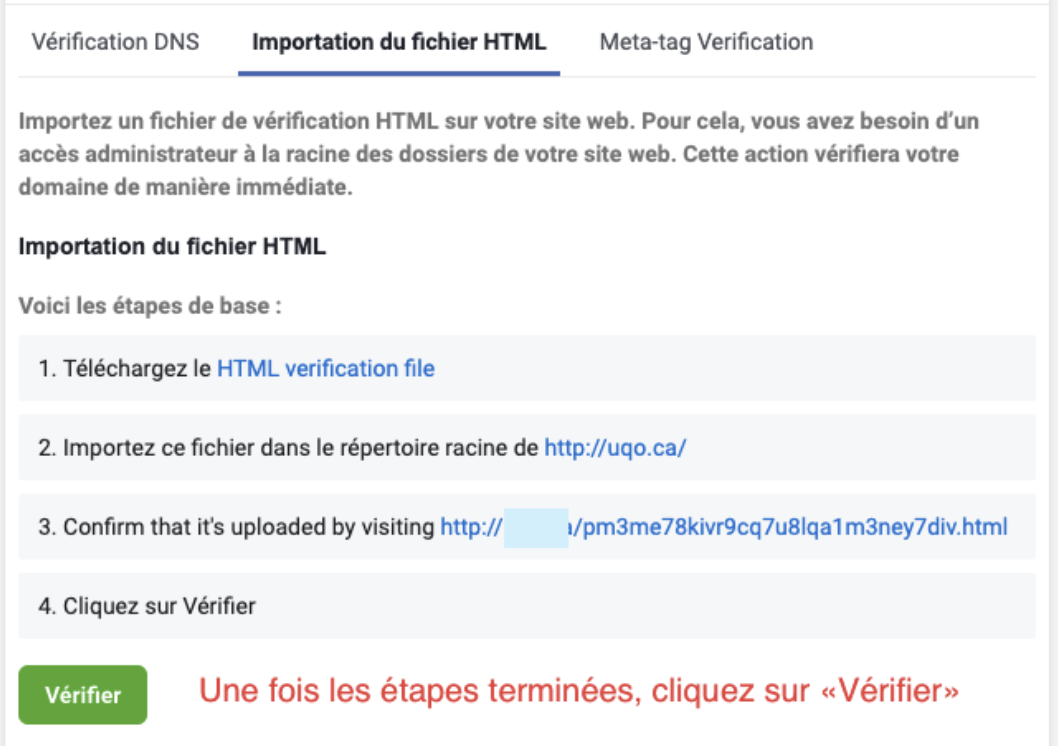
Verificatoin option 2: Importing an HTML file
- This option requires you to have access to theRoot Folderof your webiste
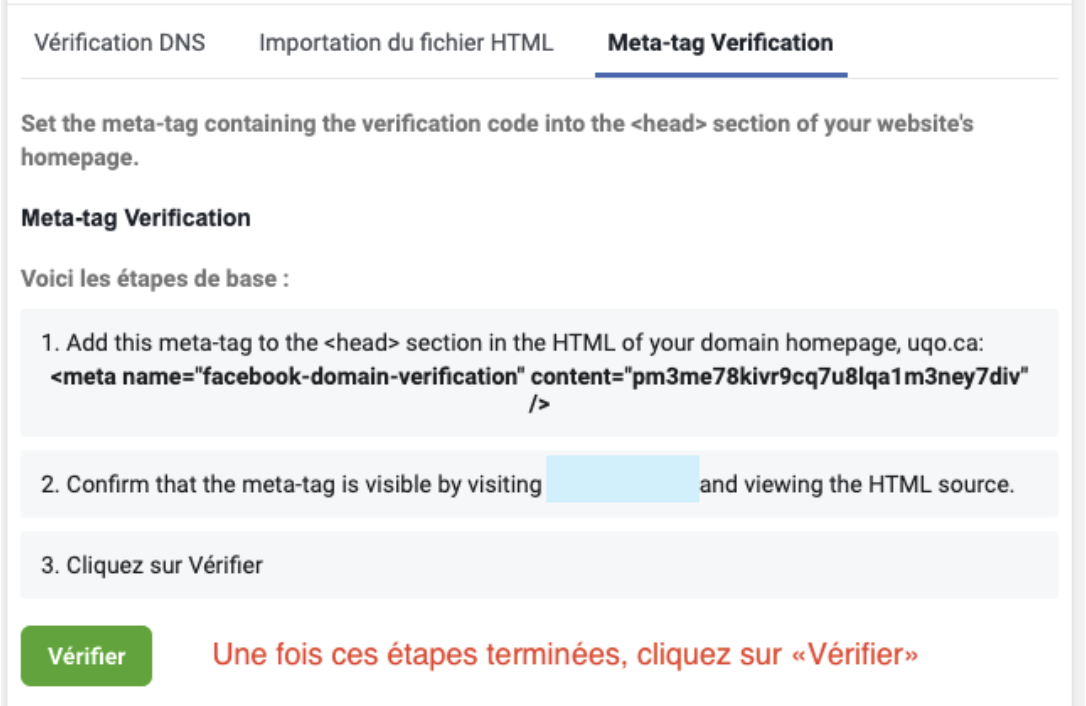
Verification option 3: Meta-Tags verification
- This option requires you to have editing access to your homepage (Minimum Meta Tag Access Level).
Congratulations! You have now successfully verified your domain! This is a very important step in your online tracking efforts for 2021. With a verified domain, you can now complete the setup of the Conversion API as well as the development of your 8 conversion events for “Aggregated Event Measurement” optimization. Stay tuned for our blog on this topic.